Guide
How to Install ExamBPPP on Android, Step by Step
The calm way to install the ExamBPPP APK: fetch the file, allow the install, log in and run the device checks.

Contents On this page
Installing ExamBPPP takes a few minutes, and almost all of them are the login and the device checks at the end. Start with the file from ExamBPPP APK, so the copy on your phone is the Android build we tested, then follow the steps below in order. Nothing here needs a computer or an account beyond the Participant ID and Password from your school.
Do the install the day before the exam if you can. A calm install at home beats a rushed one in a school corridor, and every step below is easier with time on your side.
Fetch the file first
Open the ExamBPPP download page and wait for the short countdown. When the button appears, tap it and the file lands in your downloads folder. Keep the phone awake until the download finishes, and check that the file size looks sane before you tap it.
Allow the install and confirm
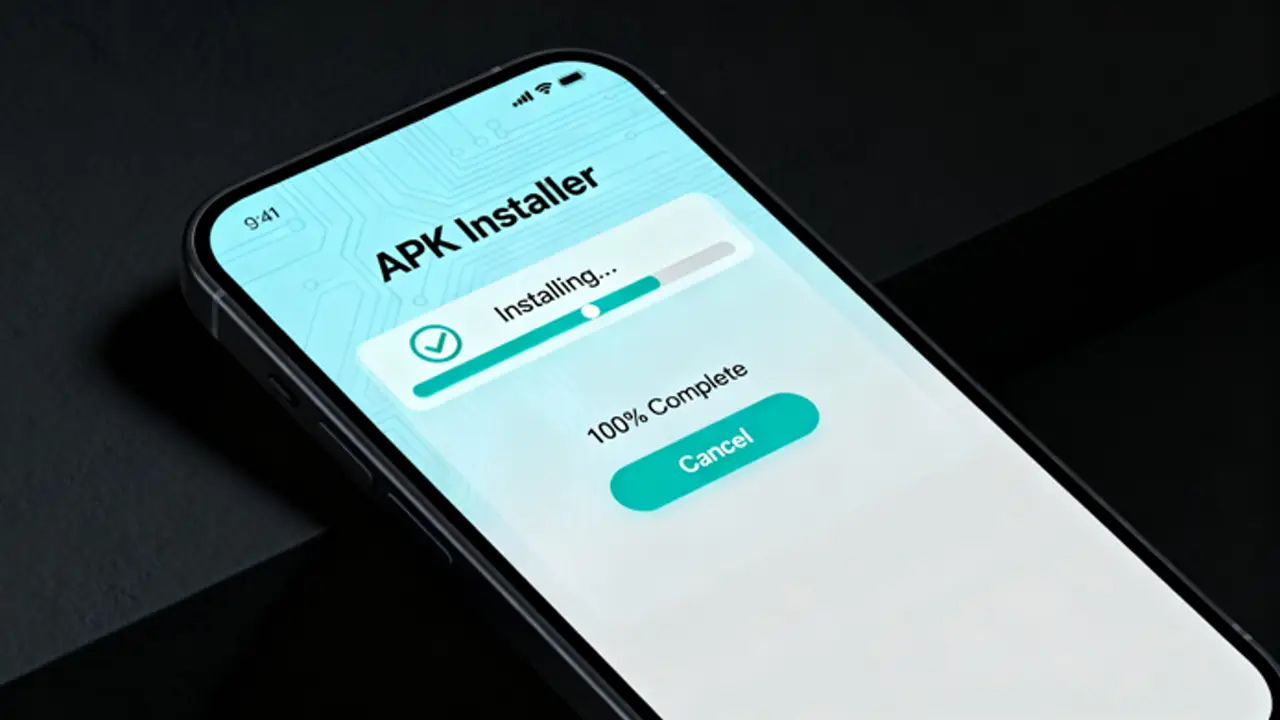
Tap the finished file. Android will ask whether your browser may install apps; allow it for this file and tap install. That prompt appears for every app installed from a downloaded file rather than a store, and it is Android doing its job, not a comment on this particular app.
Open the app and log in
Find the green app icon in your app drawer and open it. The login screen asks for your Participant ID and Password, and our ExamBPPP login notes walk through what each field wants and what to do when the login fails. Type the ID exactly as printed, because one swapped letter is the most common login failure.
Run the device checks
After login, the app checks your camera, microphone, operating system version, internet, screen resolution and device security. Our device check notes explain each check and the fix for each failed one, so read them before exam day rather than during it.
What the first open looks like
The first open is quiet: a login screen, then the checks, then a waiting screen for the assessment. Nothing here asks for money, and nothing asks for an email address. If a screen asks for either, you are not looking at the app this note describes.
If the install will not finish
A stalled install is usually storage or permission, not the file. Free a little space, confirm the browser install permission is on, and tap the file again. If the app still refuses to open after install, our fixes for an app that will not open run through the fixes in the order that solves most cases fastest.
After the install: one practice open
Open the app once the day before the exam, confirm the login screen appears, and close it again. That single practice open catches almost every problem while there is still time to fix it.
Conclusion
Install ExamBPPP the day before the exam, allow the install, log in with your Participant ID, and let the device checks pass. Four small steps, done calmly, and exam morning becomes a checklist instead of a scramble.
Quick Answers
How do I install ExamBPPP on Android?
Fetch the file from the download page, tap the finished file, allow the install when Android asks, then open ExamBPPP and log in with your Participant ID and Password.
Why does Android ask permission to install ExamBPPP?
Android asks for every app installed from a downloaded file rather than a store. Allow the install for this file and the prompt goes away for this install.
Do I need a computer to install ExamBPPP?
No. The whole install happens on the phone: download, tap, allow, open, log in. Nothing in the flow needs a computer.
What do I need before I install ExamBPPP?
Your Participant ID and Password from your school, a steady connection, and a little free storage. Have the login details on paper before you start.